Roles & Permissions
Overview
Your team members access your organization and its projects using individual user accounts, which is what you use to sign into Mixpanel. An account must be part of an organization, but it does not need to be part of all projects in the organization. Each account will have a single organization role per organization and one or more project roles for each project it is a part of. These roles can further limit what an account will have access to in Mixpanel.
To invite and manage users in your organization and project, you will need an admin or owner organization role.
Invite Users
You can invite users to an organization or to a project with specific role permissions. See Permissions to learn more about organization roles and project roles.
Mixpanel enforces a domain-based rate limit of about 10 invite emails per hour per email domain for organization/project user invitations.
Invite Users to an Organization
To invite a user to an organization:
- Under “Organization Settings”, click Users & Teams and you will land on the Users tab.
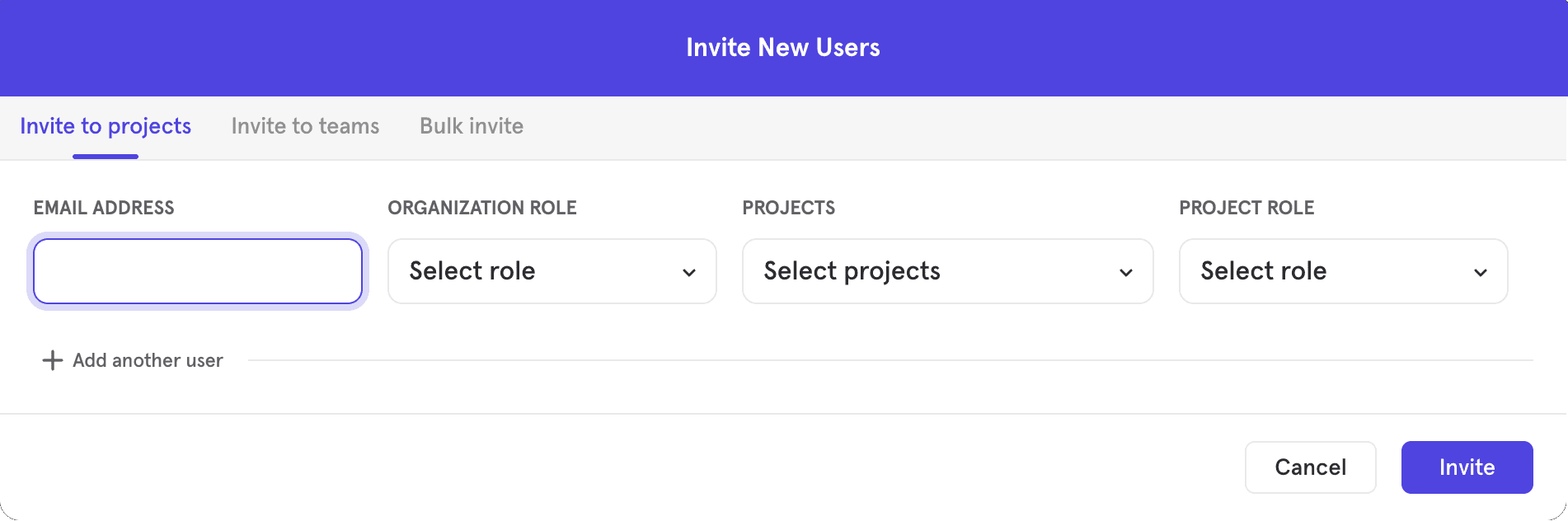
- Click Invite Users. The “Invite New Users” box appears.
- Enter the email address of the user and select their Organization Role, Projects to add them to, and Project Role.
- Click Add another user to invite additional users.
- Click Invite to complete the process.
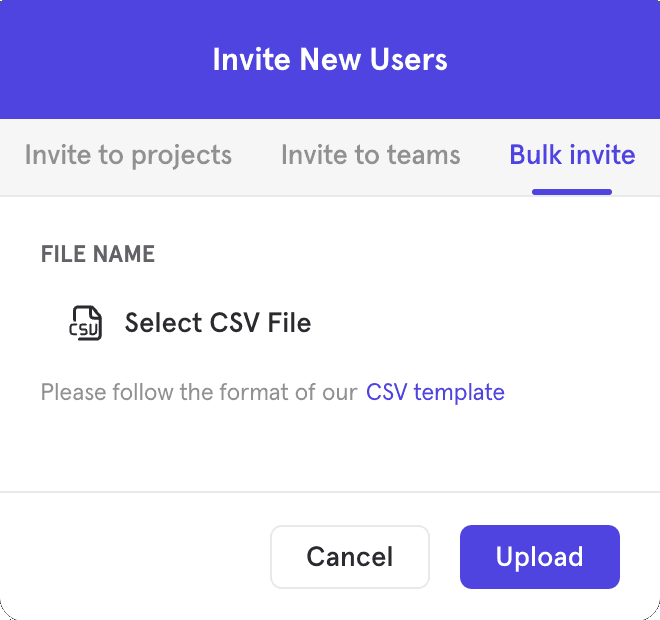
You may also bulk invite users by selecting Bulk invite and uploading a CSV file following the format of the provided CSV template linked in the UI.
Invite Users to a Project
To invite a user to a project:
- Under “Project Settings”, click Project Users.
- Click Invite Users.
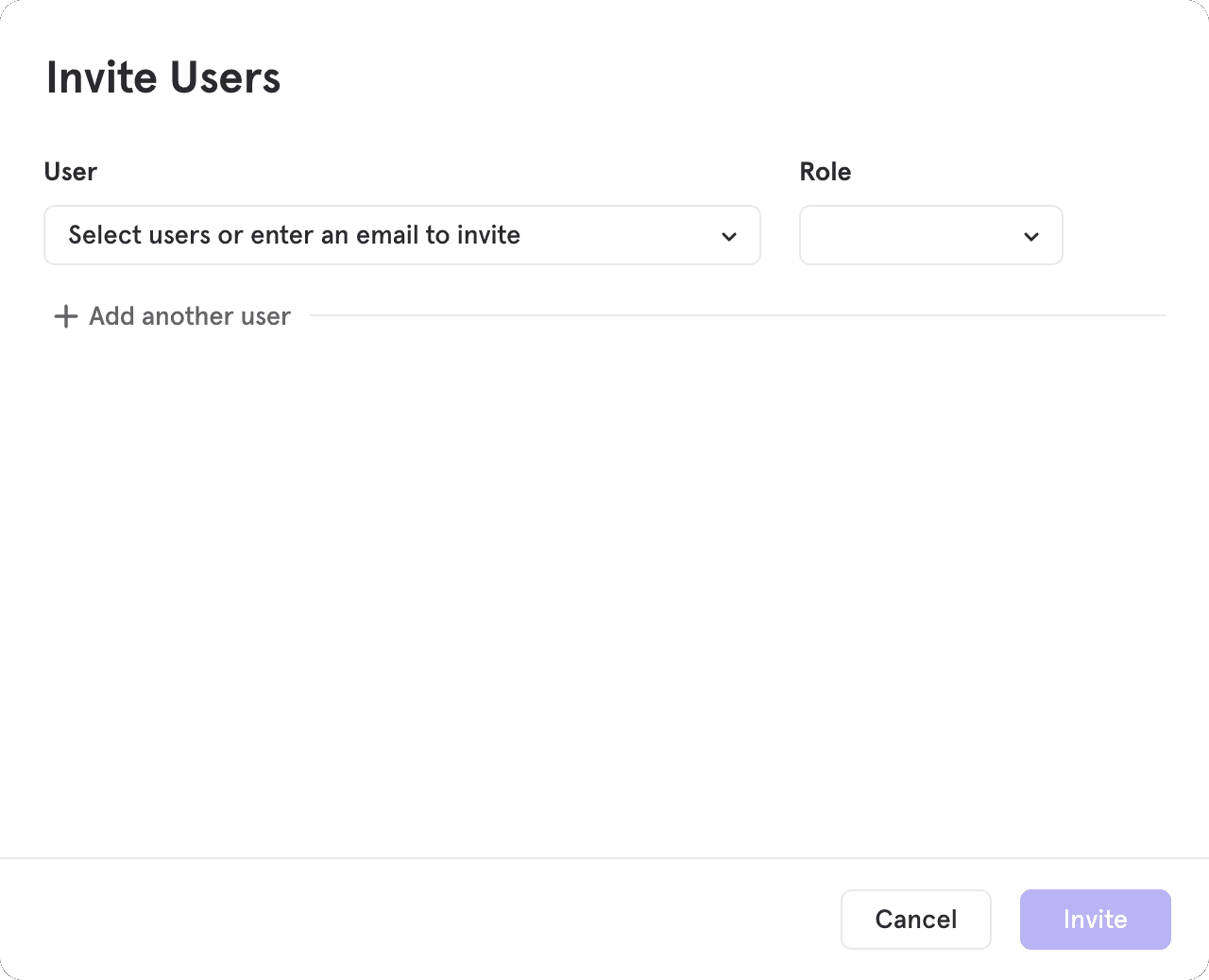
- Click the User dropdown menu to select existing users in your organization or type an email to invite a new user.
- Assign a role in the Role dropdown menu.
- Click Add another user to invite additional users.
- Click Invite to complete the process.
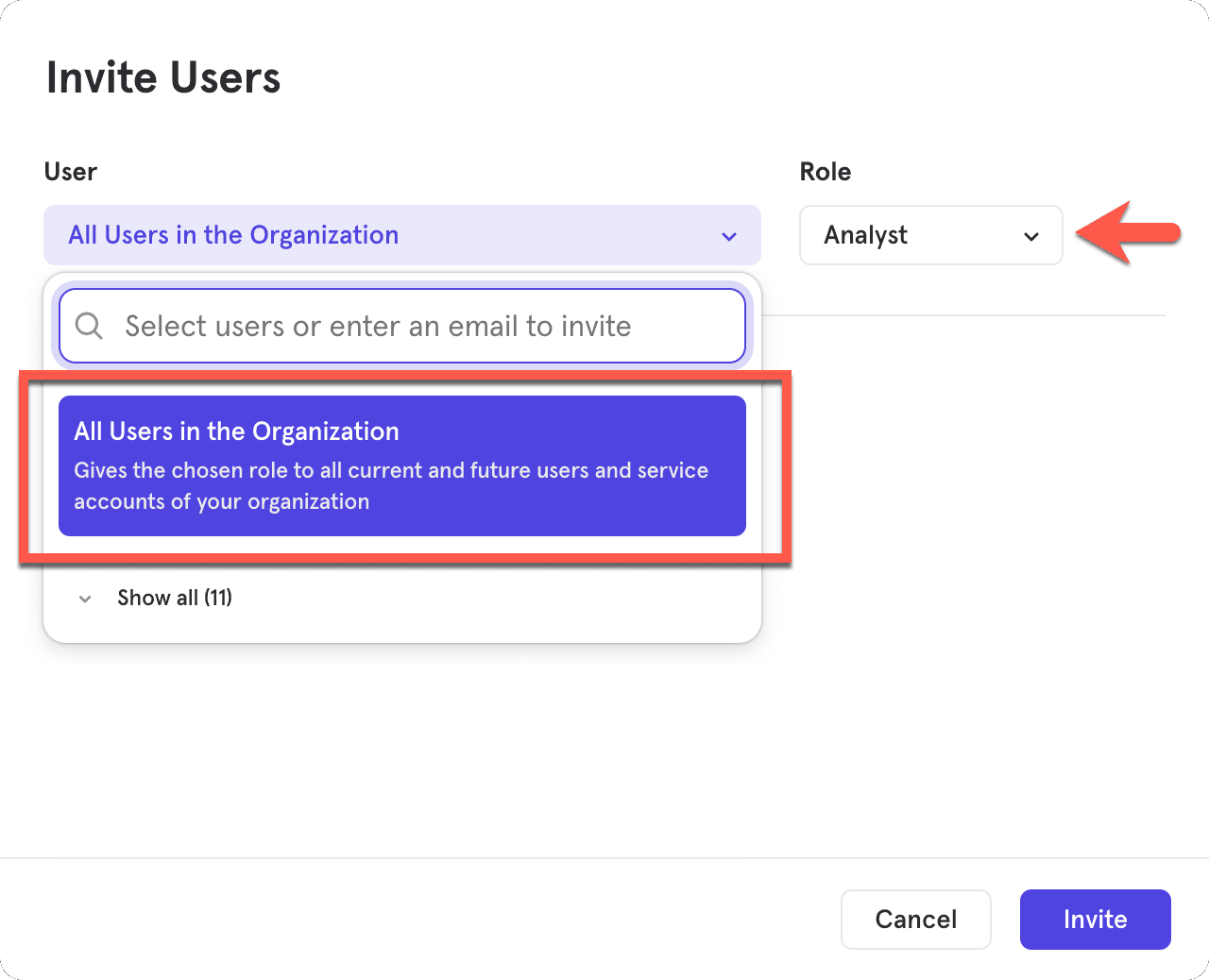
If there are projects that you wish for everyone in your organization to have some baseline access, you can choose All Users in the Organization from the User dropdown menu and then select a default role to provide all current and future users in your organization with this default access.
Remove Users
You can remove users from an organization or project. You can only remove users with a role permission below your own.
Remove User from an Organization
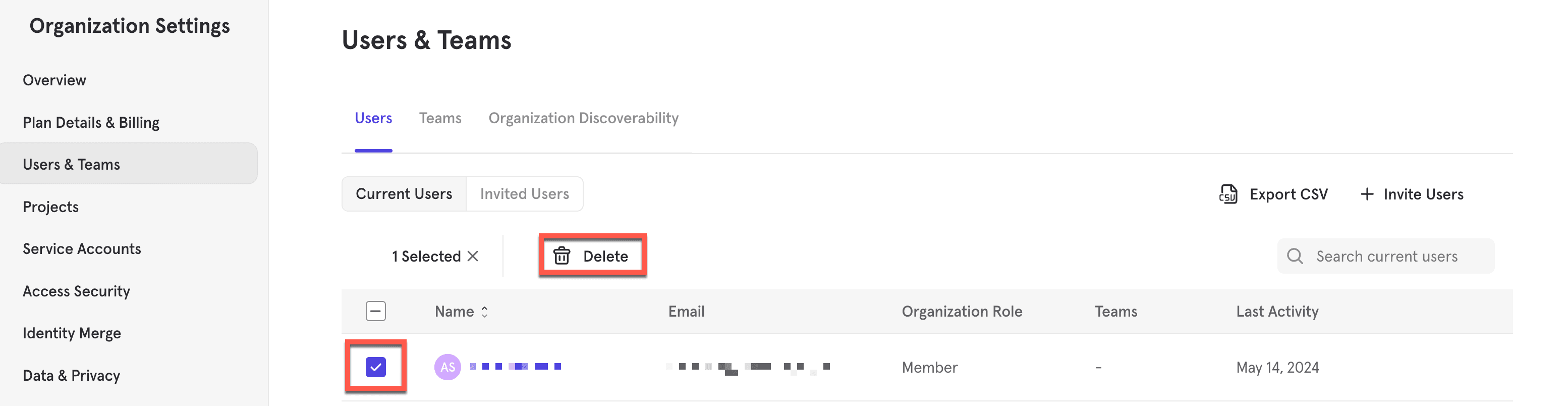
- Under “Organization Settings”, click Users & Teams.
- Find the user(s) to remove and click the checkbox next to their name.
- Click the Delete button that appears at the top of the table.
Deleting a user from an organization will remove them from all projects and teams within the organization and is non-reversible.
Remove User from a Project
To remove a user from a project:
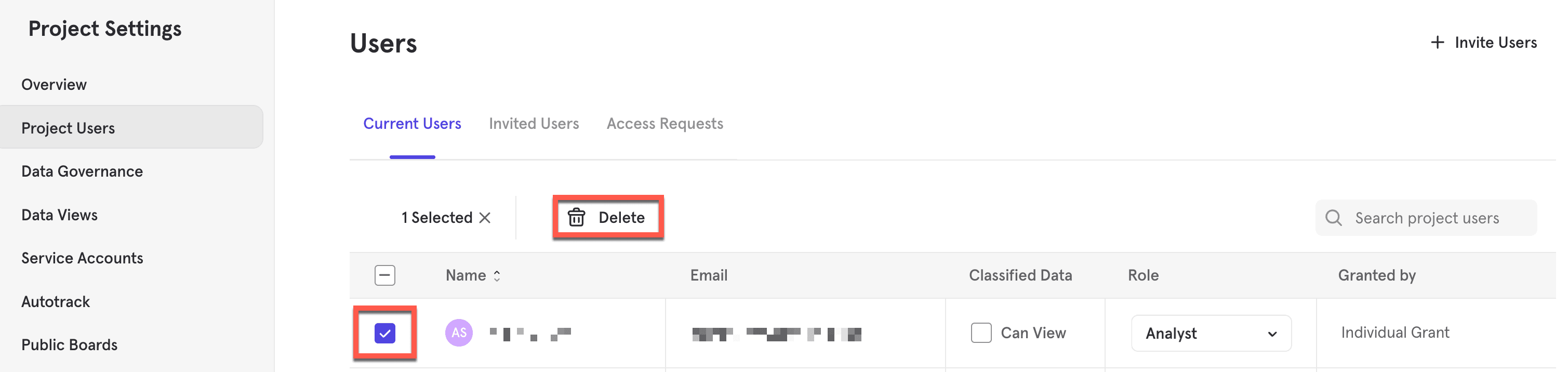
- Under “Project Settings”, click Project Users.
- Find the user(s) to remove and click the checkbox next to their name.
- Click the Delete button that appears at the top of the table.
A user can belong to multiple projects. Removing a user from one project does not affect their access to other projects within the organization. Any assets the user created (such as boards or reports) remain available in the project and are not automatically removed when the user is removed.
Only users with Organization Owner or Organization Admin roles can remove users who have access to a project granted through a Team.
Permissions
In Mixpanel, users have roles in an organization and in a project. The types of organization and project roles a user has should be based on the required permissions users need for specific levels.
Organization Roles
Users on an Enterprise or Growth plan have access to four roles: Owner, Admin, Billing Admin, and Member.
Users on a Free plan have access to two roles: Owner and Billing Admin.
See our pricing page for more details.
The table below breaks down the roles and permissions of each role:
| Organization Role | Owner | Admin | Billing Admin | Member |
|---|---|---|---|---|
| Manage Billing Plans | ✅ | ❌ | ✅ | ❌ |
| Create Projects | ✅ | ✅ | ❌ | ❌ |
| Delete Projects | ✅ | ❌ | ❌ | ❌ |
| Create/Delete Teams | ✅ | ✅ | ❌ | ❌ |
| Transfer Projects Between Organizations | ✅ | ❌ | ❌ | ❌ |
| Add/Invite/Remove users to an Organization and or Projects | ✅ | ✅ | ❌ | ❌ |
| Add/Modify/Remove Service Accounts to Organization and or Projects | ✅ | ✅ | ❌ | ❌ |
| Modify Roles - Organization Level | ✅ | ✅ | ❌ | ❌ |
| Modify Roles - Make themselves an Owner | ✅ | ❌ | ❌ | ❌ |
| Modify Roles - Project/Team Level | ✅ | ✅ | ❌ | ❌ |
| Modify 2FA and SSO | ✅ | ✅ | ❌ | ❌ |
| Request Organization Deletion | ✅ | ❌ | ❌ | ❌ |
Owner
It is recommended to have at least 2 Organization Owners at all times, in case an owner loses access to their account or is no longer working with the company.
If all existing owners are no longer working with the company and you need to assign a new owner, please reach out to the support team.
Organization Owners have administrative permissions for the organization and all the projects in the organization. Multiple users can be Owners. However, each organization must have at least one Owner.
Admin
Organization Admins have permissions to manage projects, members, and roles in the organization. Organization Admins have the same permissions as Organization Owners except for the following:
- Request Organization deletions
- Delete Projects
- Transfer Projects between Organizations
- Manage Billing Plans
In addition, an Organization Admin would not be able to assign any user to anything higher than Admin (i.e., Organization Owner).
Billing Admin
Organization Billing Admins can only manage billing plans for your company. The Billing Admin does not have to belong to a team or project. A user can be a Billing Admin and also a member of a Project or a Team simultaneously.
Billing admins can view organization settings solely to:
- Manage Billing Plans
- Update Billing Information
- View Receipts
- Submit a Downgrade Request
Member
Organization Members have no permissions to control or manage organization settings. In order for a user to have access to project(s) and/or team(s), they must first be added to the organization as a Member.
Project Roles
Users in a Project can be assigned to 4 roles: Owner, Admin, Analyst, and Consumer. The table below is an overview of the permissions per role on a project level.
| Project Roles | Owner | Admin | Analyst | Consumer |
|---|---|---|---|---|
| Transfer/Reset/Delete Projects | ✅ | ❌ | ❌ | ❌ |
| Edit Project Timezones | ✅ | ✅ | ❌ | ❌ |
| Edit Project Name | ✅ | ✅ | ❌ | ❌ |
| View Access Keys | ✅ | ✅ | ❌ | ❌ |
| View Usage Statistics | ✅ | ✅ | ❌ | ❌ |
| Access Time Period Settings | Edit | Edit | View Only | View Only |
| Invite Project Users | ✅ | ✅ | ❌ | ❌ |
| Change Project Users Role | ✅ | ✅ | ❌ | ❌ |
| Approve Access Requests | ✅ | ✅ | ❌ | ❌ |
| Create Service Accounts | ✅ | ✅ | ❌ | ❌ |
The table below is an overview of the permissions per role for reports and other features.
| Project Roles | Owner | Admin | Analyst | Consumer |
|---|---|---|---|---|
| Create and View Insights Reports | ✅ | ✅ | ✅ | ✅ |
| Create and View Flows Reports | ✅ | ✅ | ✅ | ✅ |
| Create and View Funnels Reports | ✅ | ✅ | ✅ | ✅ |
| Create and View Retention Reports | ✅ | ✅ | ✅ | ✅ |
| Download Reports | ✅ | ✅ | ✅ | ❌ |
| Create Custom Alerts | ✅ | ✅ | ✅ | ❌ |
| Edit Custom Alerts | ✅ | ❌ | ❌ | ❌ |
| View Users Report | ✅ | ✅ | ✅ | ✅ |
| Export Users Report | ✅ | ✅ | ✅ | ❌ |
| Create/Edit Cohorts | ✅ | ✅ | ✅ | ✅ |
| Export Cohorts | ✅ | ✅ | ✅ | ❌ |
| Create/Edit User Profiles | ✅ | ✅ | ❌ | ❌ |
| Delete User Profiles | ✅ | ✅ | ❌ | ❌ |
| Create and View Boards | ✅ | ✅ | ✅ | ✅ |
| Create Subscriptions for Boards | ✅ | ✅ | ✅ | ❌ |
| Edit Subscriptions for Boards | ✅ | Only the Creator | Only the Creator | Only the Creator |
| Create/Edit Custom Events | ✅ | ✅ | ✅ | ✅ Can save only for self |
| Create/Edit Saved Behaviors | ✅ | ✅ | ✅ | ✅ Can save only for self |
| Create/Edit Saved Formulas | ✅ | ✅ | ✅ | ✅ Can save only for self |
| Create/Edit Custom Properties | ✅ | ✅ | ✅ | ✅ Can save only for self |
| Create/Edit Borrowed Properties | ✅ | ✅ | ❌ | ❌ |
| Upload a Lookup Table | ✅ | ✅ | ✅ | ✅ |
| Map Property to Lookup Table in Lexicon | ✅ | ✅ | ❌ | ❌ |
| Hide Data in Lexicon | ✅ | ✅ | ❌ | ❌ |
| Edit Descriptions in Lexicon | ✅ | ✅ | ❌ | ❌ |
| Add Tags in Lexicon | ✅ | ✅ | ❌ | ❌ |
| Merge Data in Lexicon | ✅ | ❌ | ❌ | ❌ |
| Drop Data in Lexicon | ✅ | ❌ | ❌ | ❌ |
| Download CSV in Lexicon | ✅ | ✅ | ✅ | ✅ |
Owner
When a user creates a project, they own and have complete control over it. They have all permissions at the project level and can provision project ownership to other project users.
Organization Owners, by default, have administrative permissions to assume an owner role in a project.
Admin
Project Admins have the same set of permissions as project owners. However, they cannot delete or reset the project or manage its security. In addition, a Project Admin would not be able to assign any user to anything higher than Admin (i.e., Project Owner).
Organization Admins, by default, have administrative permissions to assume an admin role in a project.
Analyst
Project Analysts can create and save Mixpanel reports and Boards. They can also share their saved reports and Boards, along with reports and Boards in which they have editor permissions. They, however, do not have permissions to manage project user roles.
Consumer
Project Consumers can view and save their own reports and Boards. However, they cannot share their saved reports and Boards with other project users, as these will be marked as private.
- Add saved reports to their own Boards. Duplicate another user’s Board and view it as a private Board.
- Edit reports and Boards on which they have been added as an editor. However, they cannot share these reports and Boards.
- Cannot create public Boards.
Project Consumers do not have permissions to manage project user roles.
Multiple Roles at Once
It is possible to have multiple or conflicting roles on a project via teams or organization roles. Within Mixpanel, all roles are additive and strictly give permissions to an action. They do not remove any abilities. For example:
-
A project Owner who is an organization Admin will have both project Owner and project Admin permissions in the project. For all intents and purposes, this is the same as having just the project Owner role.
-
If a user is assigned both the Consumer role individually and the Analyst role via a team. The user would be able to do anything a Consumer can do and anything an Analyst can do.
Grant Types
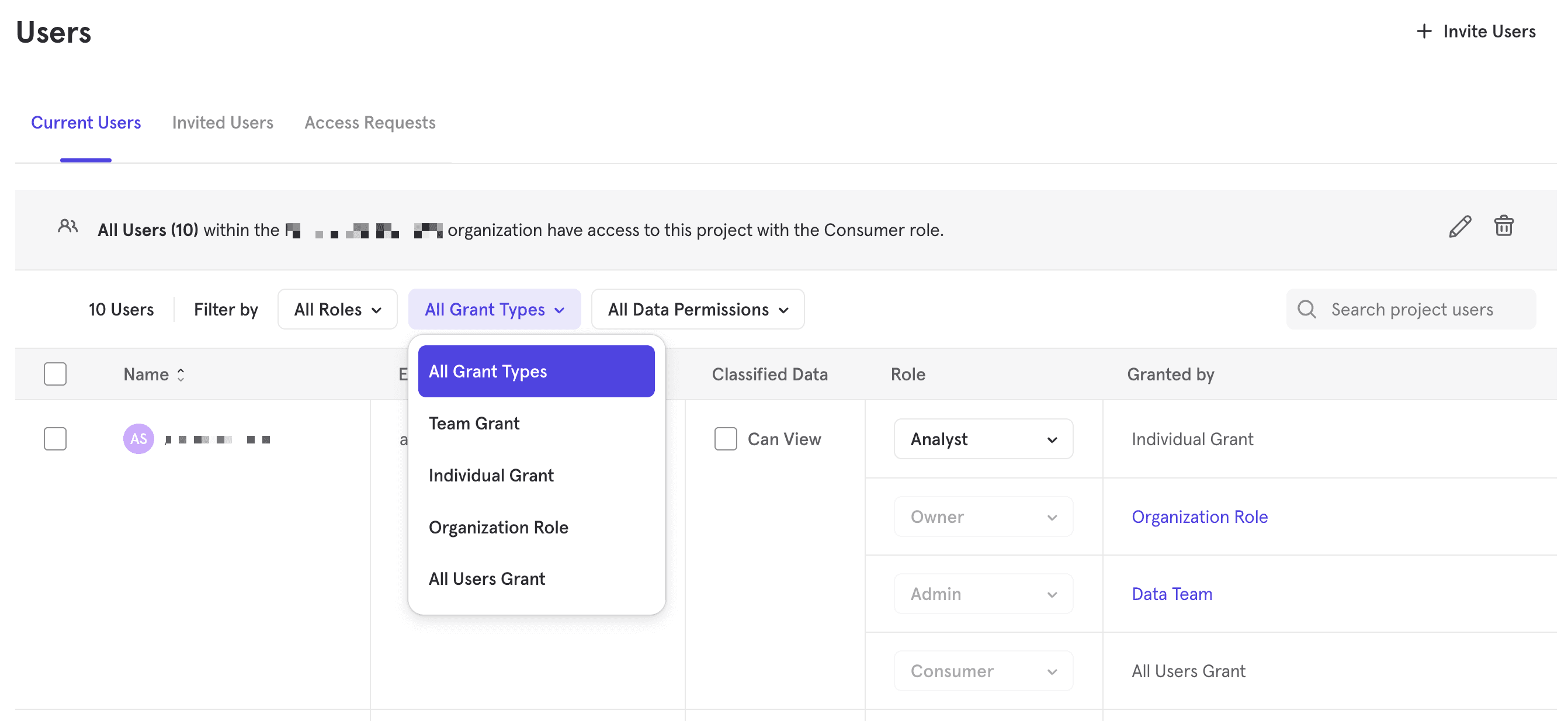
A user’s project role(s) can be granted in different ways:
- Organization Role - Project Owner or Admin role was granted because the user is an Organization Owner or Admin
- Team Grant (Team Name) - user is part of the indicated team where the project role was granted
- Individual Grant - role was explicitly granted to the user at the project level
- All Users Grant - current project has enabled “All Users in the Organization” to have the default indicated role
Teams
Mixpanel enables you to create and delete Teams within an organization. Teams make it easier to manage roles and permissions for a group of users. Users who are members of a Team will be provisioned with the same role and permissions that are assigned to the team.
Creating Teams
To create teams in Mixpanel:
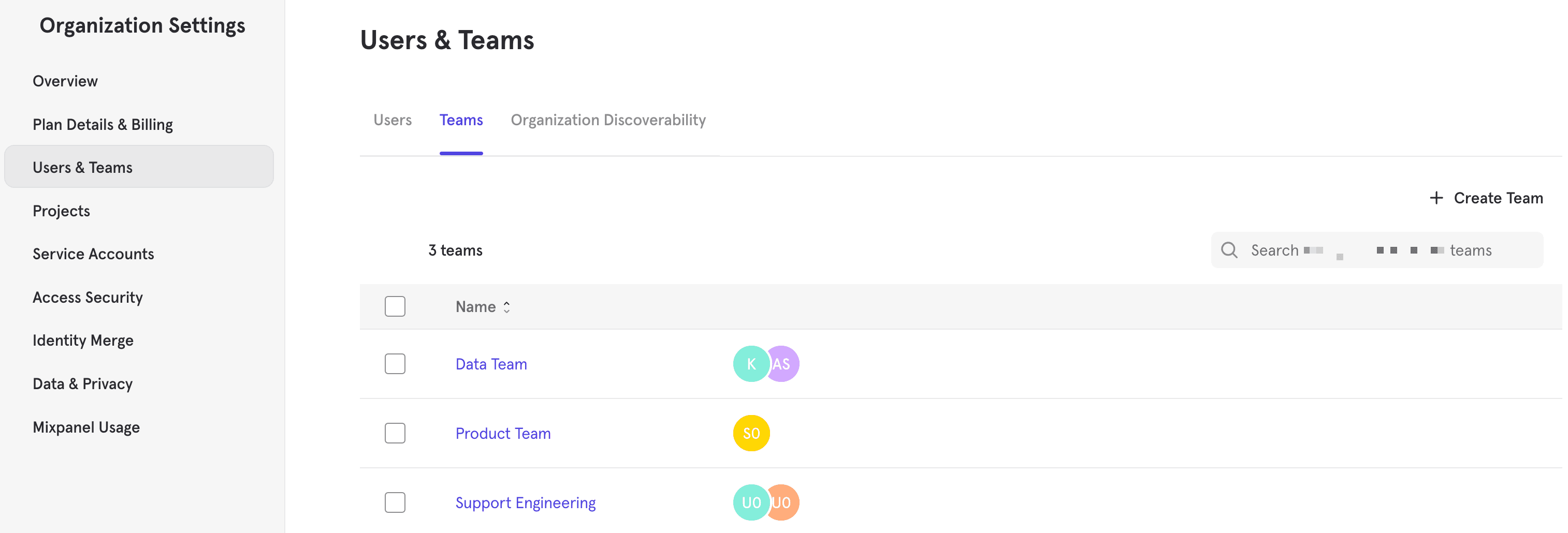
- Under “Organization Settings”, click Users & Teams and you will land on the Users tab.
- Click Teams to see a list of current teams in your organization.
- Click Create Team and provide a team name.
- Click Done to complete the process and see the team’s permission and membership.
Adding Users to Teams
All users added to a team will receive the same role and permissions that are assigned to the team. To add users to a team:
- Under “Organization Settings”, click Users & Teams and you will land on the Users tab.
- Select the Teams tab and select the team to add users to.
- Click Add Users to select users to add to the team.
- Click Done to complete the process.
Service Accounts can also be added to teams, similar to how you would add a user to teams.
Managing Team Permission
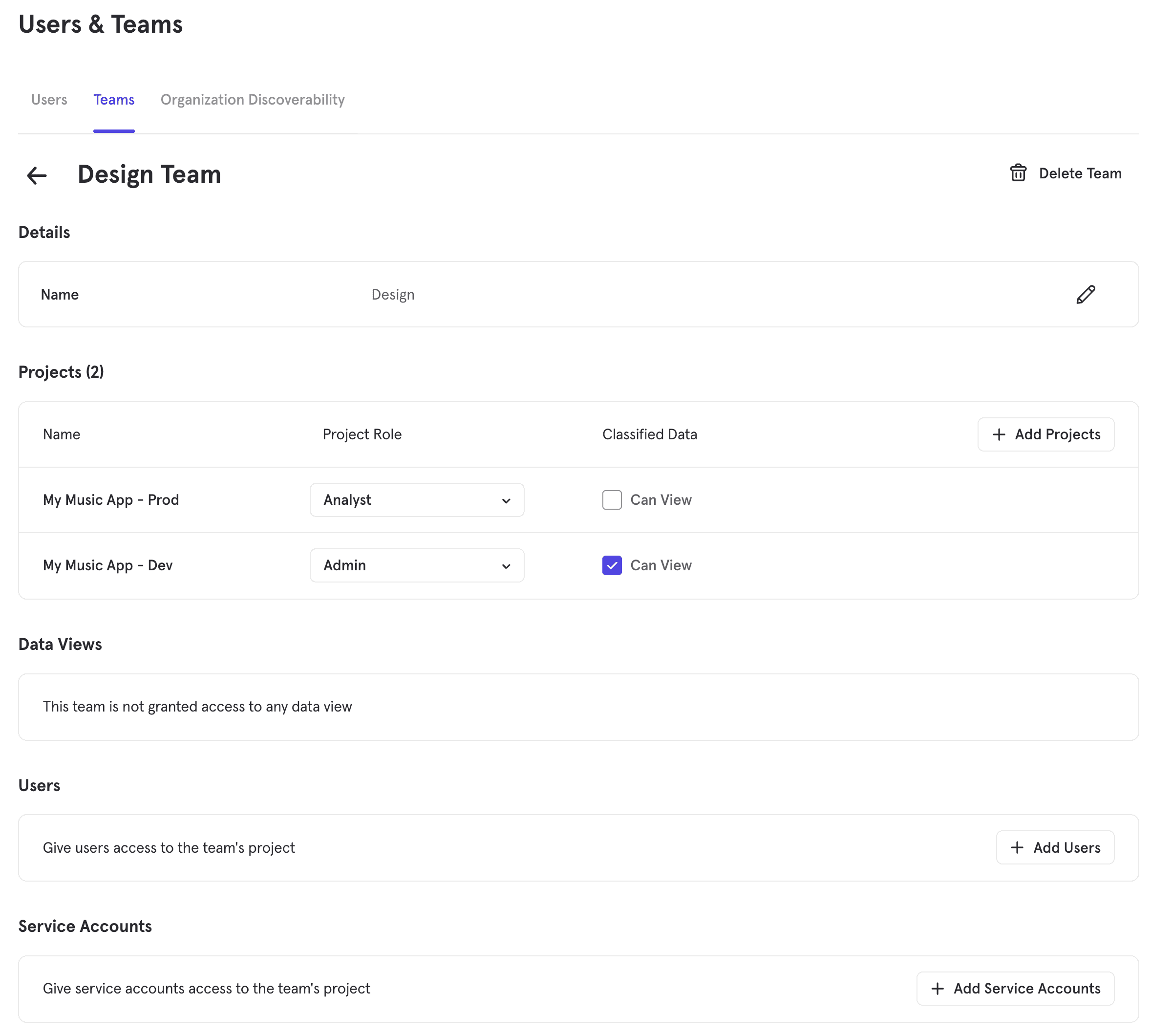
Adding Projects to Teams
Adding projects to a team gives all individuals in the team access to that project with the specified project role. To add projects to a team:
- Under “Organization Settings”, click Users & Teams and you will land on the Users tab.
- Select the Teams tab and select the team to manage.
- Click Add Projects and select the project(s) and appropriate project role.
- Click Add to complete the process.
- You can also grant Classified Data access by ticking the checkbox under Classified Data column.
Adding Data Views to Teams
Adding project Data Views to a team will filter data access to all individuals within the team. Click here for instructions on how to add a team to a Data View under Project Settings —> Data Views.
Deleting Teams
Deleting a team will revoke all access permissions that were granted to users and service accounts as part of their team assignments. Permissions given through other grant types will be retained.
To delete a team in Mixpanel:
- Under “Organization Settings”, click Users & Teams and you will land on the Users tab.
- Click Teams to see a list of current teams in your organization.
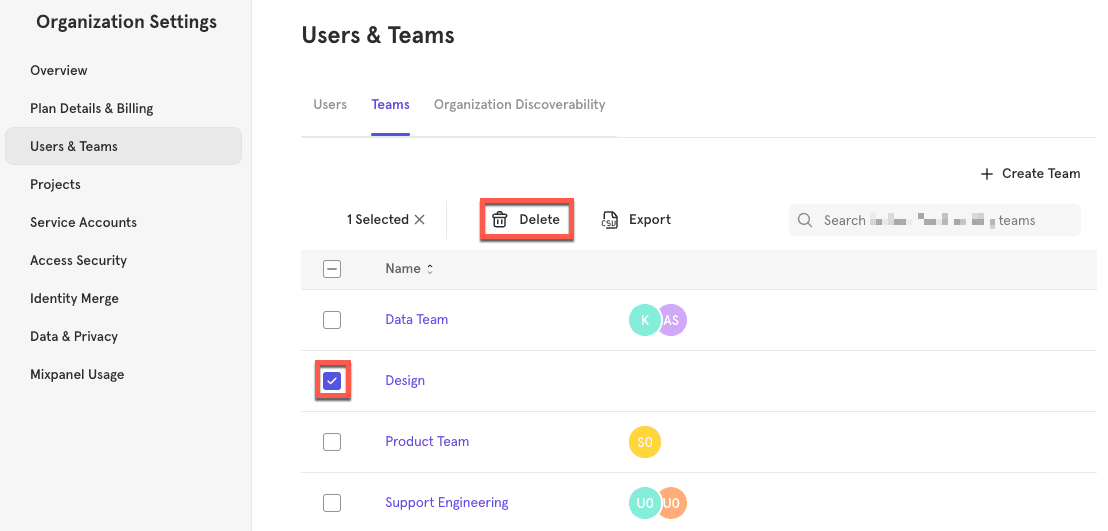
- Find the team(s) to remove and click the checkbox next to the team name.
- Click the Delete button that appears at the top of the table.
Custom Roles
Custom Roles is available to organizations on Enterprise plans. See our pricing page for more details.
Custom roles let you create specialized access profiles beyond the four default project roles (Owner, Admin, Analyst, Consumer). With custom roles, you can define granular permissions tailored to specific job functions or workflows. Each project can have up to 5 custom roles.
Only project Owners and Admins can create and manage custom roles.
Creating a Custom Role
To create a custom role:
- Under “Project Settings”, click Project Users.
- Select the Project Roles tab to see a list of current roles in the project.
- Click Create Custom Role.
- Enter a Name and optional Description for the role. Names must be unique within the project.
- Optionally, select an existing role as a template to start with its permissions pre-selected.
- Configure permissions by toggling individual permissions on or off across the available categories (see Permission Categories below).
- Click Save to create the role.
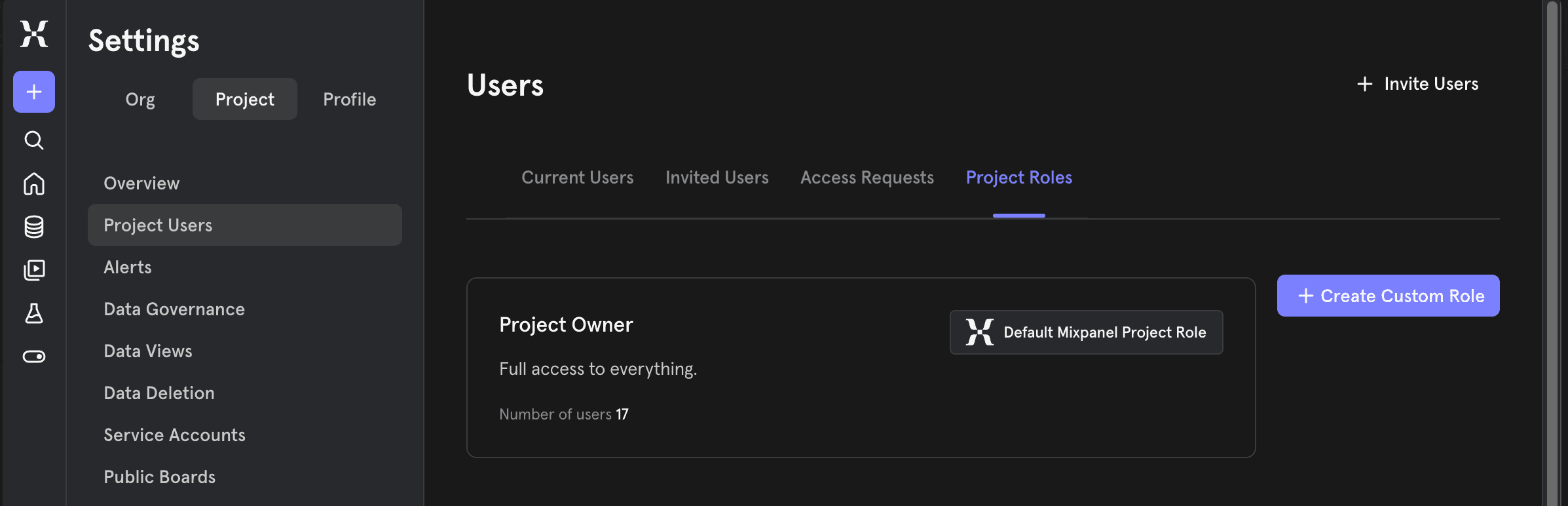
Once created, the custom role will appear alongside default roles when assigning project roles to users, teams, and service accounts.
Permission Categories
When creating or editing a custom role, you can configure permissions across six categories:
| Category | Configurable Permissions |
|---|---|
| Analysis | Save Reports and Boards, Create Custom Data Definitions (cohorts, metrics, custom events and properties), Manage All Analysis and Custom Data Definitions |
| Feature Flags and Experimentation | Experimentation Creation, Feature Flag Creation, Full Feature Flag Access |
| Data Management | Edit Metadata, Set Event and Property Visibility, Data Verification, Manage Schemas, Manage Lookup Tables, Mark Sensitive Data, Edit Profiles, Data Deletion Dropping and Merging, Data Settings Access |
| Data Access, Exports, and Alerts | Public Boards, Sensitive Data Access, Export Lexicon, Export Reports as CSV, Export Users as CSV, Export Events as CSV, Create Alerts, Create Board Subscriptions, Manage All Alerts |
| Data Sources and Definitions | Create and Manage Cohort Syncs, Create and Manage Pipelines, Create and Manage Data Warehouses |
| Settings and Notifications | View and Edit Project Settings |
All custom roles automatically include base permissions: viewing reports, editing visibility of entities you created, and sharing entities you created. These permissions cannot be removed.
Managing Custom Roles
To manage a custom role, navigate to Project Settings → Project Users → Project Roles tab. Click the overflow menu (three dots) on any custom role card to access the following options.
Editing a Custom Role
Select Edit to modify the role name, description, or permissions, then click Save. Changes take effect immediately for all users assigned to that role.
Copying a Custom Role to Another Project
Select Copy to Another Project to copy a custom role from one project to another within the same organization. Choose the target project, then modify the name, description, or permissions as needed before saving.
Cloning a role to another project requires the manage custom roles permission on the target project. Any permissions gated by features that are not enabled on the target project will be automatically excluded from the cloned role.
Deleting a Custom Role
Select Delete and confirm the deletion. When a custom role is deleted, all users, service accounts, and teams currently assigned to that role are automatically reassigned to the Consumer role — the least-privileged default role. Review the list of affected users before confirming deletion, and reassign them to an appropriate role afterward.
When a custom role is deleted, all users currently assigned to that role will be automatically reassigned to the Consumer role. Review the list of affected users before confirming deletion.
Assigning Custom Roles to Service Accounts
Service accounts can be assigned custom roles the same way project users can. To assign a custom role to a service account, navigate to Project Settings → Service Accounts and select the custom role when creating or editing a service account.
Assigning Custom Roles to Organization Teams
Custom roles can be applied to organization-level teams for bulk role assignment. When a team is given access to a project that has custom roles, those custom roles appear in the role dropdown alongside the default roles.
To assign a custom role to a team:
- Navigate to Organization Settings → Users & Teams → Teams.
- Select the team you want to configure.
- Under Projects, add the project or find an existing project assignment.
- Click the role dropdown for that project and select the custom role.
All members of the team inherit the assigned role for that project.
Changes to Sensitive Data Access (April 2026)
Previously, sensitive data access was managed through a separate per-user toggle on the Project Users page. Admins could individually grant or revoke a user’s ability to view sensitive properties, independent of their project role.
With Custom Roles, sensitive data access is now a permission called Sensitive Data Access under the Data Access, Exports, and Alerts category. This gives you a single place to define what a role can and cannot do, rather than managing access through a separate toggle.
No default role — including Owner and Admin — has the ability to view sensitive data by default. This is intentional: access to sensitive data should always be an explicit decision, not an inherited side effect of a role. Owners and Admins retain the ability to control who gets sensitive data access, but must be explicitly granted viewing access themselves through a custom role.
Note the distinction between two related permissions:
- Mark Sensitive Data (under Data Management) — Controls which properties are classified as sensitive. Does not grant the ability to view that data.
- Sensitive Data Access (under Data Access, Exports, and Alerts) — Grants the ability to view properties that have been marked sensitive.
These are intentionally separate so that someone can classify data without being able to see it.
FAQs
Can I modify the default project roles?
No. Default roles (Owner, Admin, Analyst, Consumer) cannot be edited. Create a custom role instead — optionally starting from a default role as a template.
Why can’t Owners or Admins see sensitive data by default?
By design, no role can view sensitive data by default — including Owner and Admin. Owners and Admins can control who gets access, but cannot view sensitive data themselves unless explicitly granted via a custom role. This ensures sensitive data access is always intentional.
Can Custom Roles change how Mixpanel looks for a user?
No. Custom Roles control what actions a user can perform, not the UI. Navigation and layout do not change based on role.
Does this include resource-level access control?
No. Custom Roles operate at the project level. Per-board, per-report, or per-cohort permissions are not supported.
Do service accounts support custom roles?
Yes. Service accounts can be assigned custom roles the same way project users can.
Was this page useful?